
Appearance
Custom MCP integration
Supersimple can connect to any Model Context Protocol (MCP) server using streamable HTTP, letting you bring your own tools and data sources into Supersimple's AI. Once connected, the MCP server's tools become available as a source you can ask questions against, right alongside your databases and other integrations.
Note: only use MCP servers you trust, as Supersimple does not control which tools the server provides or how they behave.
How it works
There are two steps to using a custom MCP integration:
- An admin adds the integration once for the whole account, pointing Supersimple at the MCP server's URL.
- Each user logs in individually the first time they want to use it, via a quick OAuth flow.
Setup
In Supersimple, head over to Account settings → Integrations, click Add integration, and pick Custom MCP.
Fill in the form:
- Display name — a friendly name for the server, e.g.
Internal Wiki. This is what users will see when picking data sources. - Server URL — the URL of your MCP server, e.g.
https://mcp.example.com.
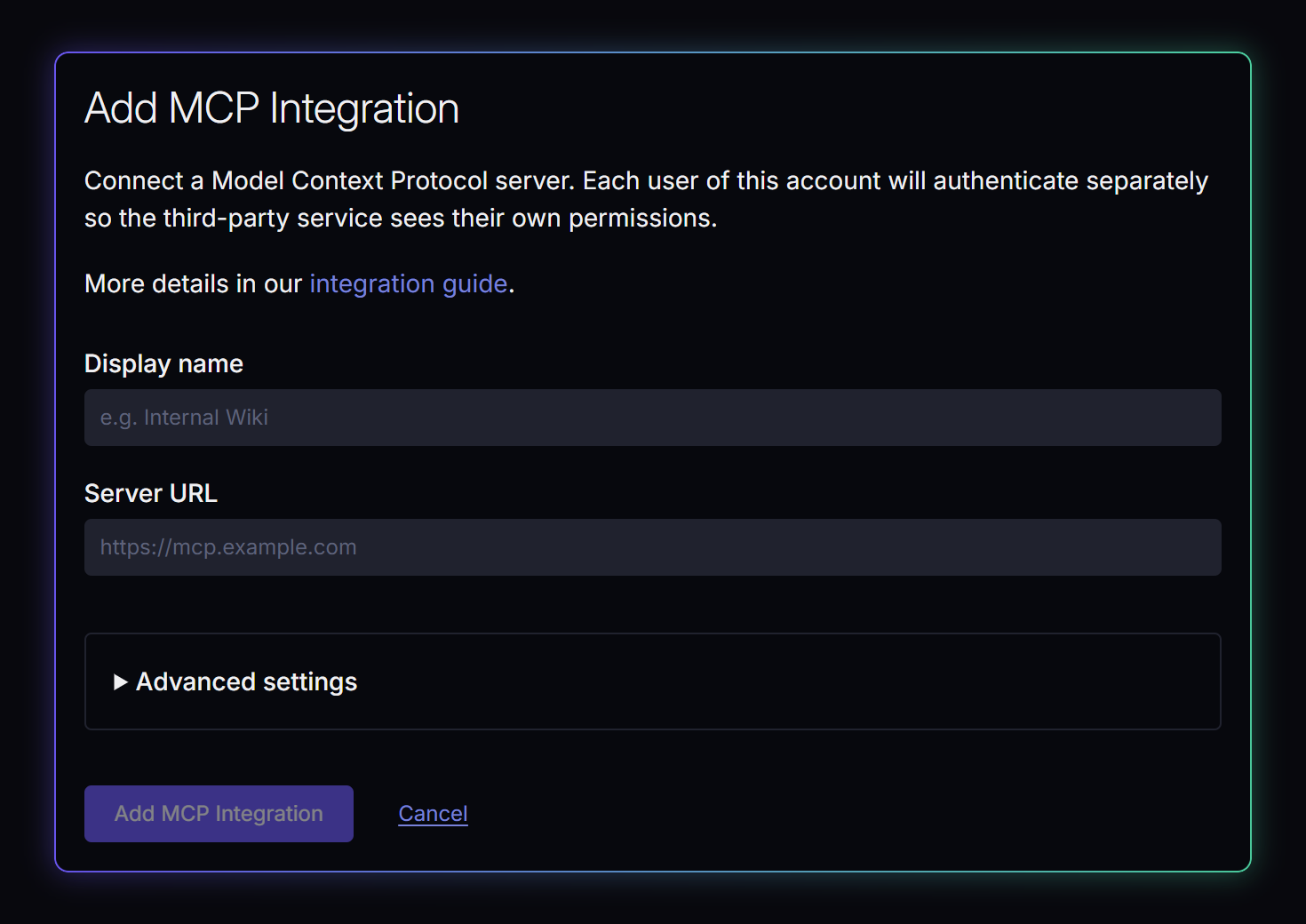
Click Add MCP Integration to save.
Advanced settings
Most MCP servers can be connected with just a display name and URL — Supersimple attempts dynamic client registration automatically. If your server requires pre-registered OAuth credentials, expand Advanced settings to provide them.
That's it. The MCP integration is now available in the Data Sources picker when exploring your data with AI.