
Appearance
Confluence configuration
Supersimple connects to Confluence Cloud through our official Atlassian Forge app. The setup is self-service and takes about a minute once the app is installed in your Confluence site.
What gets indexed
- All pages your Confluence admin grants the Supersimple app access to
- All blog posts in those spaces
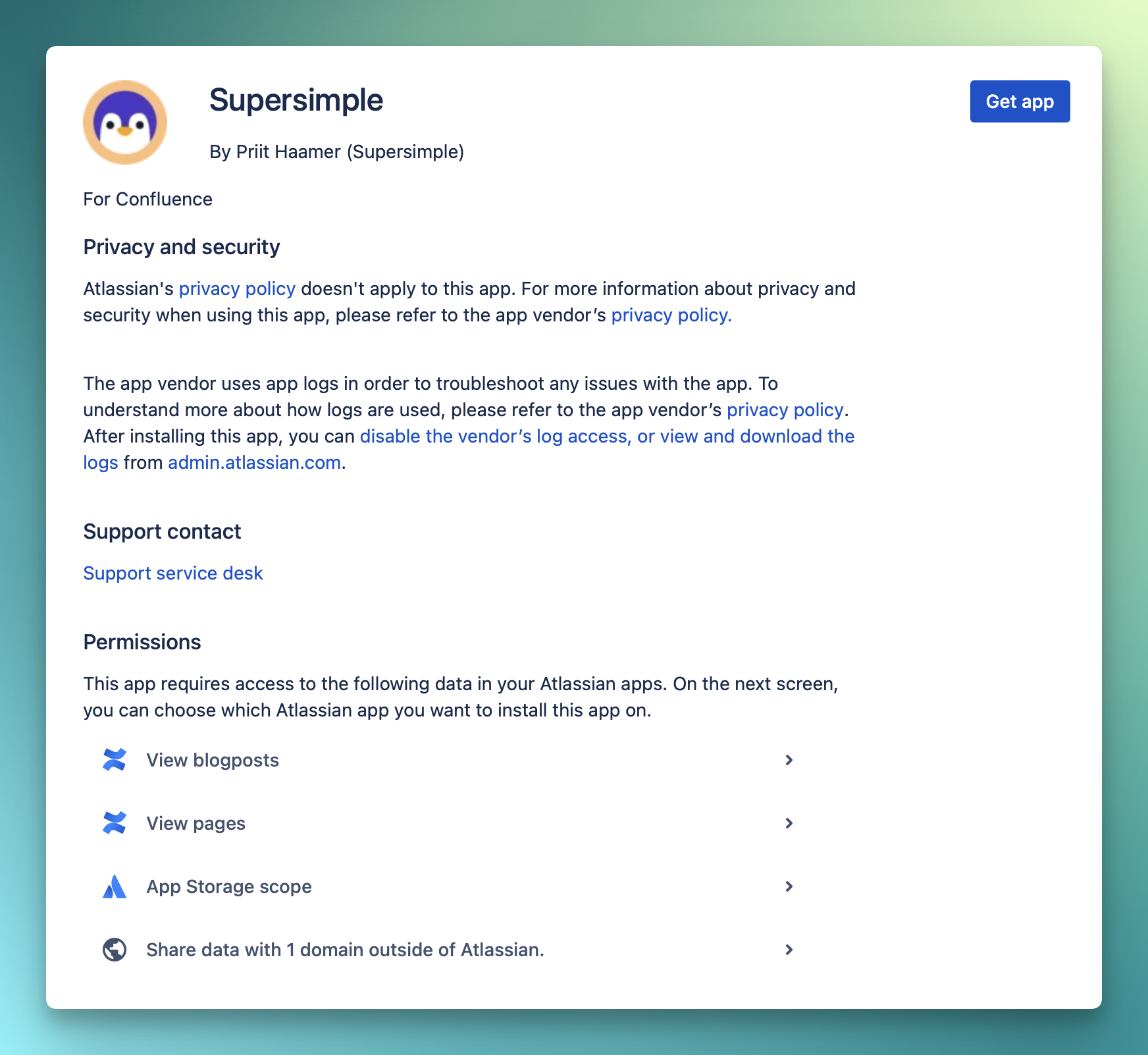
Supersimple Forge app requests the minimum scopes needed: read:page:confluence, read:blogpost:confluence, and app-private storage. It does not have access to Jira, comments, attachments, or user/group data.
Setup
Step 1: Start the connection from Supersimple
In Supersimple, head over to your Account settings, click Add integration, and pick Confluence.
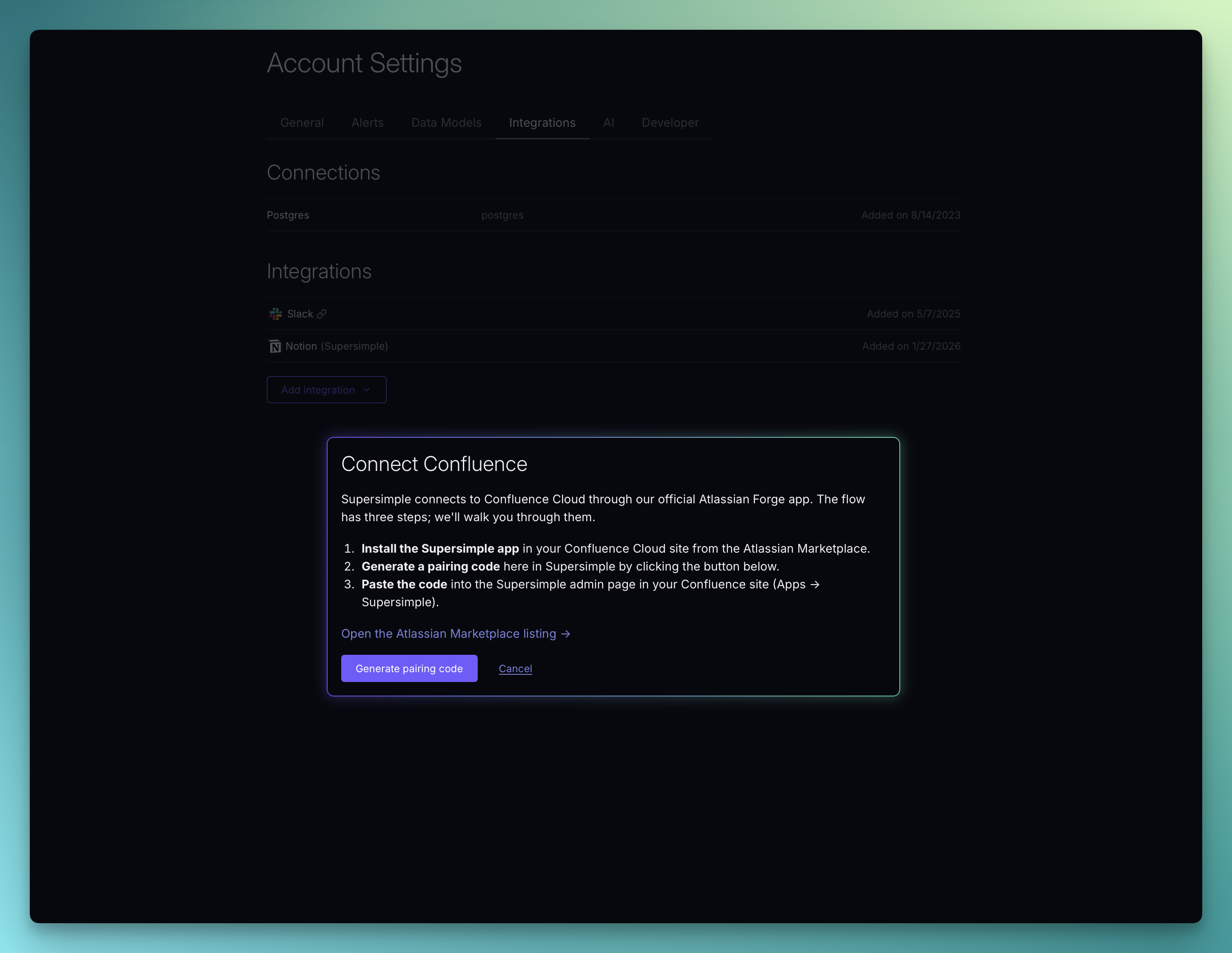
Click Generate pairing code.
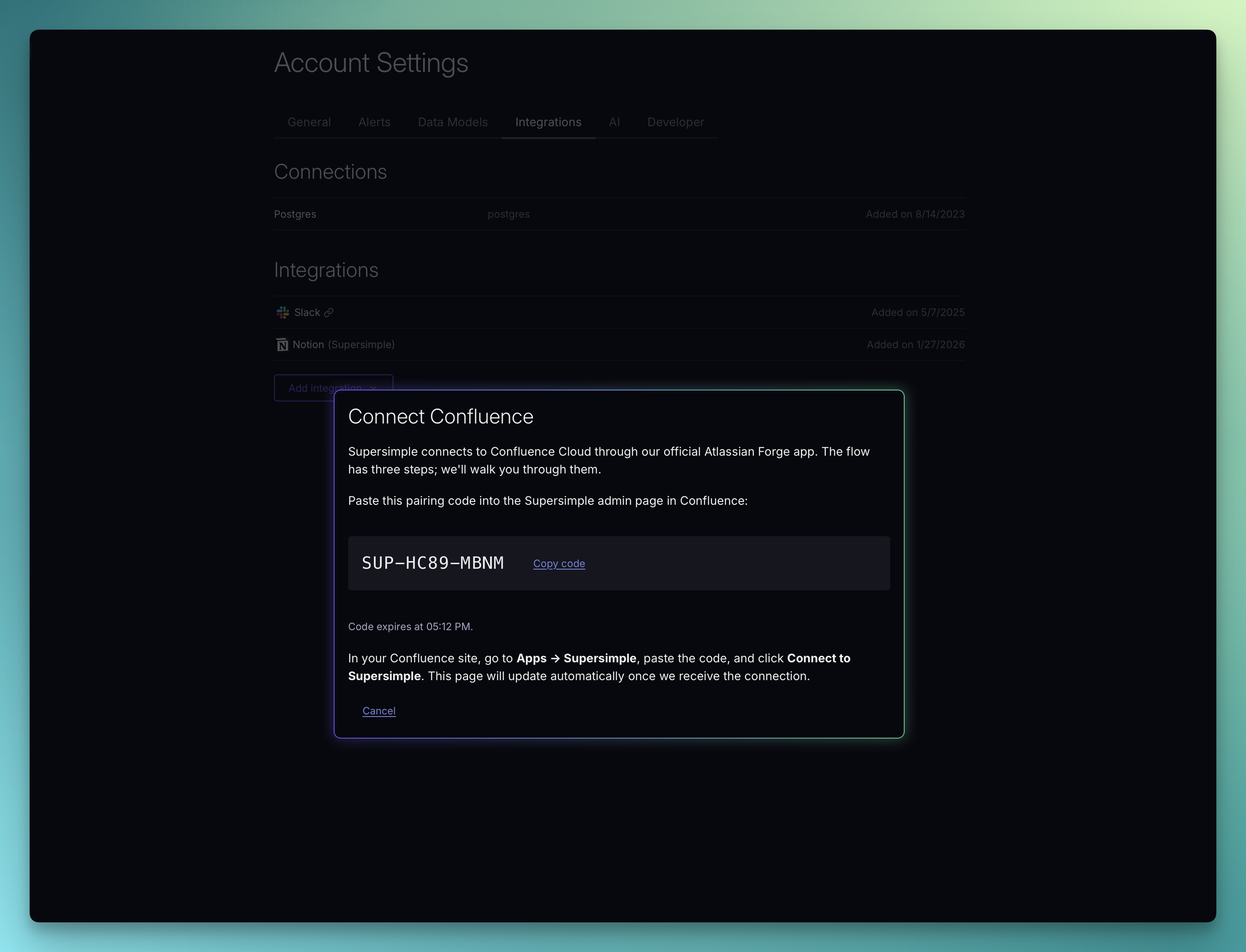
Step 2: Copy the pairing code
Supersimple gives you a one-time pairing code that's valid for 30 minutes. Copy it.
Step 3: Install the Supersimple app in your Confluence site
A Confluence admin needs to install the Supersimple app and choose the Confluence site to install it on.
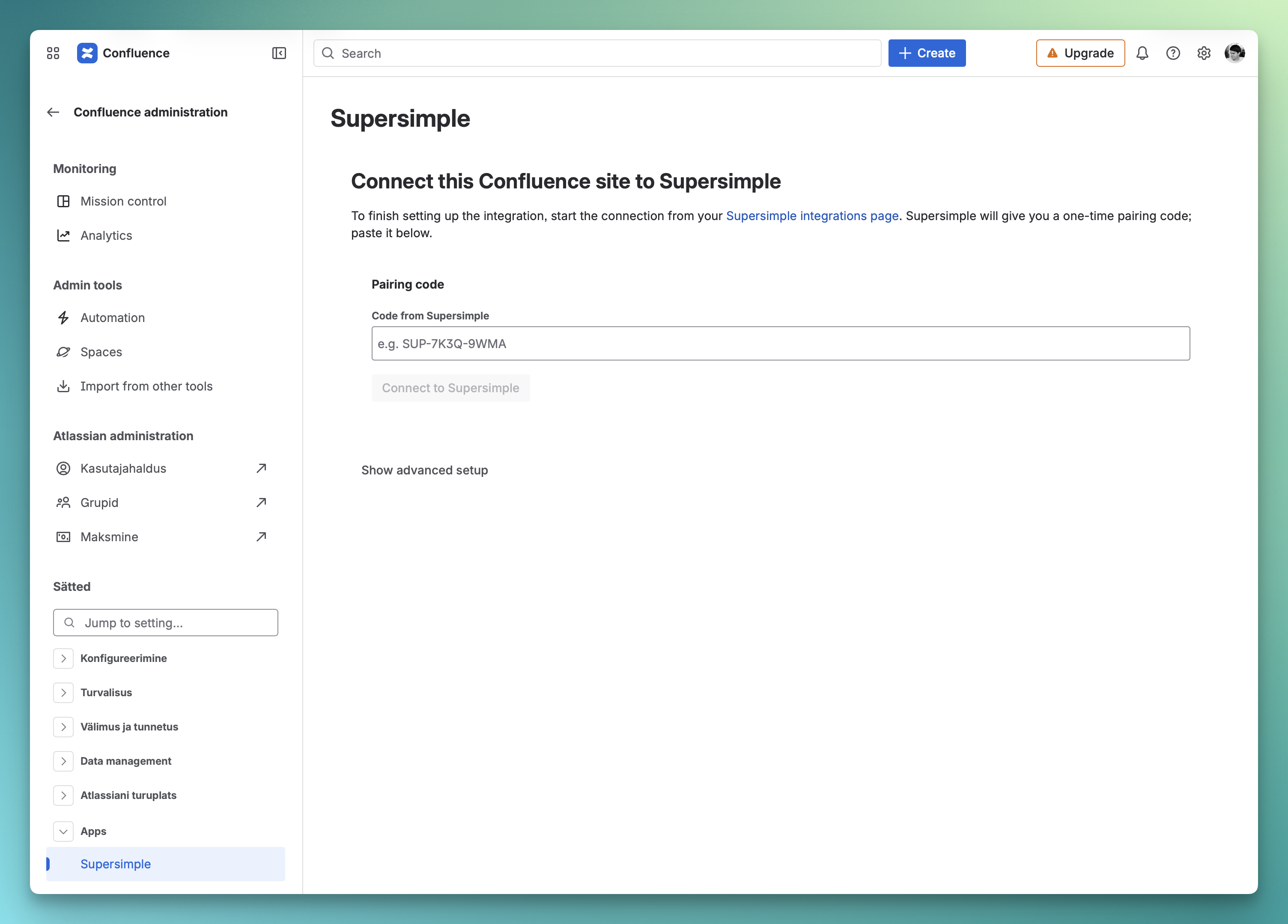
Step 4: Paste the code into Confluence
In your Confluence site, open Settings → Apps → Supersimple. Paste the pairing code into the Code from Supersimple field and click Connect to Supersimple.
That's it. Supersimple should shortly show your Confluence account as connected and start ingesting content. Initial ingestion typically completes within a few minutes for small sites and will take proportionally longer time for larger ones.