
Appearance
Evals
Evals test how well Supersimple AI answers a set of questions. You define the questions and checks, and an AI judge grades the answers. Use evals to test changes to your data models or AI instructions.
INFO
Evals are in early access. Contact us to turn them on for your account.
How evals work
- Suite — a YAML file of questions for the AI, kept with your other configuration.
- Case — a question and the checks used to grade its answer. Each attempt runs as a fresh AI conversation.
- Check — one thing the answer must get right, written in plain words. The judge passes or fails each check and says why.
- Run — a test of every case in a suite. Each case can have up to 3 attempts to check whether answers are consistent.
Writing a suite
supersimple evals create revenue-reporting creates evals/revenue-reporting.yaml. The file contains one case, a check of each type, and comments explaining the format. For example:
yaml
id: revenue-reporting
name: Revenue reporting
description: Questions the finance team asks every month.
judgeGuidance: Answers can be in English or Spanish.
cases:
  - id: arr-by-plan
    prompt: Compare August ARR by plan, including the change from July.
    checks:
      - id: pairs-plans
        type: judge_final_answer
        criterion: Reports ARR and percentage change for each plan.
        expected: 'Enterprise: $2.99M, +12%'
      - id: uses-arr
        type: judge_thread
        criterion: Uses the ARR metric instead of summing invoice amounts.
  - id: churned-customers
    prompt: Which customers churned last quarter?
    attempts: 3
    requiredPasses: 2
    checks:
      - id: lists-customers
        type: judge_final_answer
        criterion: Lists the customers that churned in the previous calendar quarter.
Suite
| Field | Description |
|---|---|
id | Required. Identifies the suite. Saving a file with an existing id adds a version to that suite. |
name | Required. How the suite is shown in Supersimple. |
description | What the suite covers. |
cases | Required. 1 to 100 cases. |
attempts | How many times a run asks each case, from 1 to 3. Defaults to 1. |
requiredPasses | How many of a case's attempts must pass for the case to pass. Defaults to all of them. |
judgeGuidance | Instructions for the judge on every check in the suite, up to 4,000 characters. |
Case
| Field | Description |
|---|---|
id | Required. Unique within the suite. Results are matched across runs by this id. Keep it the same when editing the question. |
prompt | Required. The question the AI is asked. |
checks | Required. 1 to 15 checks. |
attempts, requiredPasses | Override the suite's settings for this case. |
judgeGuidance | Instructions for this case's checks. The judge receives them after the suite's guidance. |
sources | The data sources the AI can use, by type such as dwh or slack, or by id. Defaults to your account's default sources. |
research | Set to true to answer in research mode. |
Check
| Field | Description |
|---|---|
id | Required. Unique within the case. |
type | Required. What the judge sees: judge_final_answer or judge_thread. |
criterion | Required. What the answer must get right, in plain words. |
expected | The expected answer. Only the judge sees it. |
judge_final_answer grades the answer shown to the user. The judge sees the result blocks, their data, and the calculations used to produce them. Use it to check reported numbers and conclusions.
judge_thread grades the whole conversation. The judge sees every block, its data, and the AI's progress updates. Use it to check how the AI reached the answer, such as which metric or filter it used.
Writing good checks
- Test one thing per check so failures are easy to understand.
- Put the expected answer in
expected. Describe allowed differences in the criterion, such as "Rounding to the nearest thousand is fine." - Use judge guidance for shared rules, such as accepted answer languages or your fiscal calendar.
- Set
requiredPassesbelowattemptsto allow some attempts to fail.
Running a suite
Suites are added and run with the Supersimple CLI.
Test a suite file without saving it:
bashsupersimple evals test evals/revenue-reporting.yaml --waitTest runs show only in the terminal. A suite appears on the Evals page once it's saved.
Save the file as a new version. Use
-mto describe what changed:bashsupersimple import evals/revenue-reporting.yaml -m "Add the churn question"supersimple importsaves suite files alongside the rest of your configuration, andsupersimple export --evalsexports suites toevals/.Run the latest saved version using the suite's
id. You can also click Run on the suite's page:bashsupersimple evals run revenue-reporting --wait
A run takes a few minutes, depending on the number of cases and attempts. Click Cancel run on the suite's page to stop it. An account can have up to 3 runs in progress at a time.
Versions
Saving a changed file creates a numbered version. Unchanged files are skipped.
A suite's history shows only runs of saved versions. The YAML tab lists each version's change description, author, and save date. Select a version to read or copy its YAML.
Reading results
Evals
The Evals page lists your suites. Each row shows the description, case count, last run time, and latest pass rate. Hover over a section of the outcome bar to see its case count. Click a suite to open it.
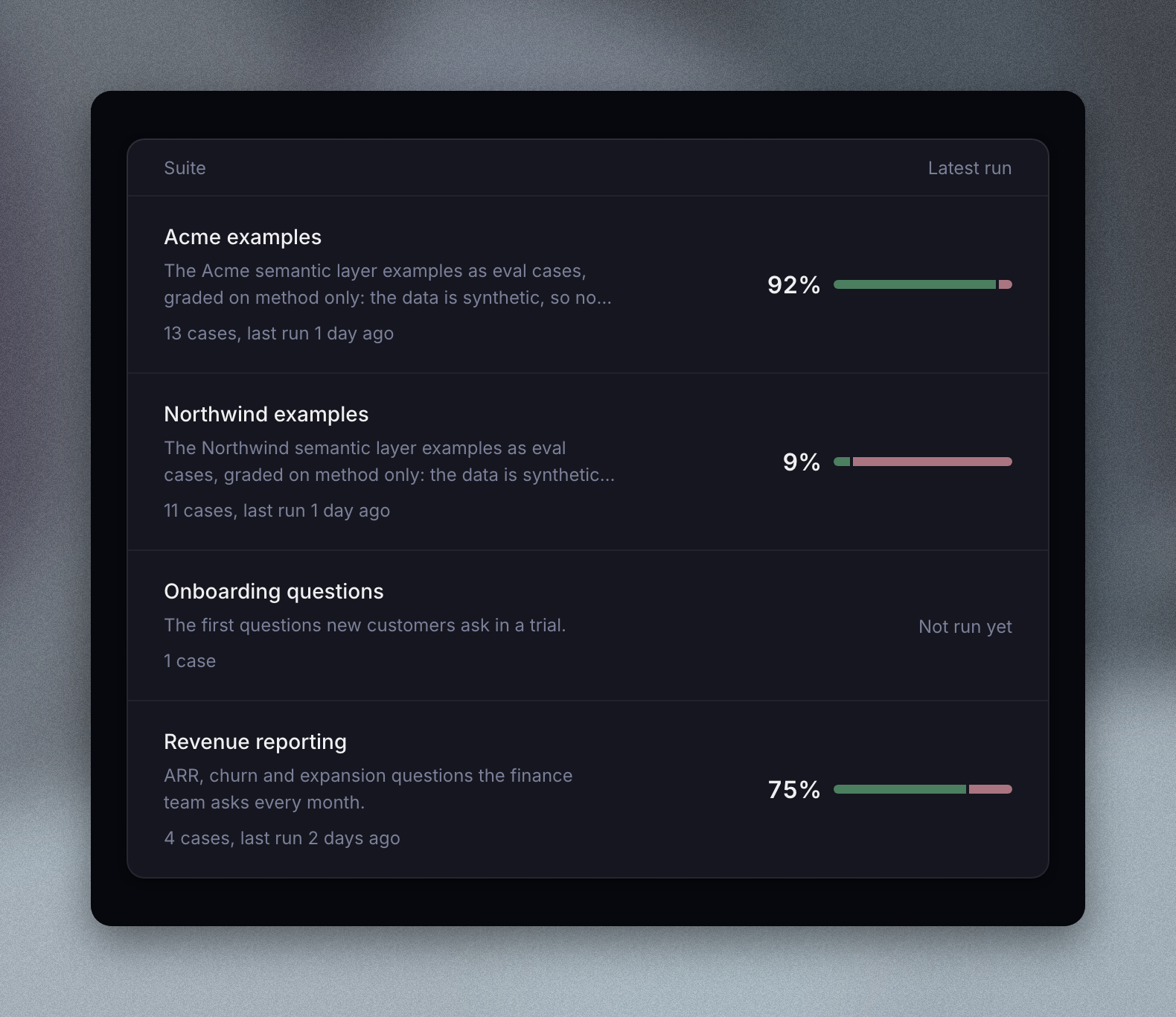
The pass rate is the percentage of graded cases that passed. Cases that couldn't be graded are excluded.
A suite's results
The suite's page opens on its latest run. Select another run from the list or the pass rate chart. The summary shows its version, start time, who started it, pass rate, duration, and average answer time.
The table below shows each case's result in the selected run. The history squares show recent results, oldest first. The selected run's square is highlighted.
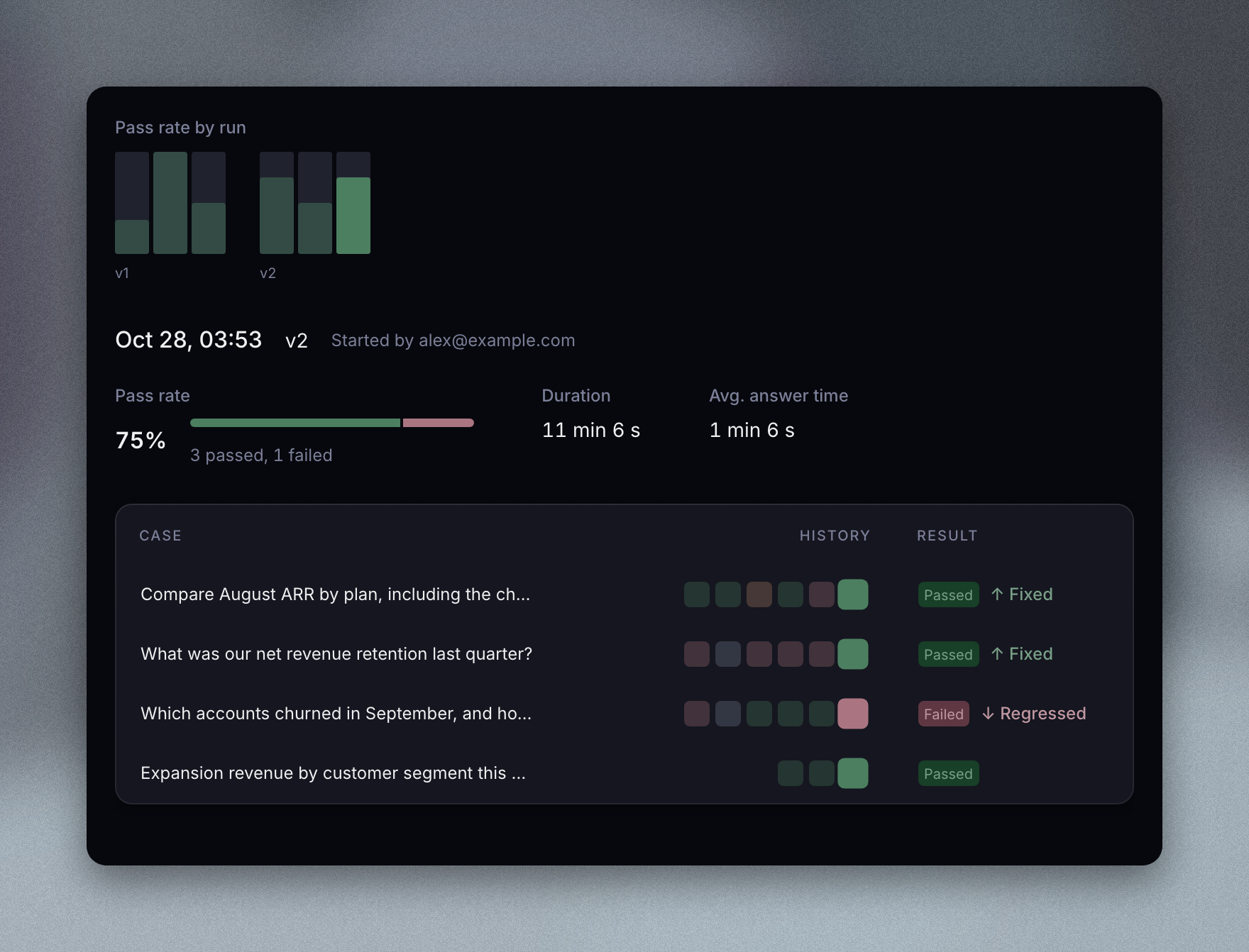
- Passed — enough of the case's attempts passed.
- Failed — too many attempts failed to reach the required passes.
- Error — too few attempts could be graded, for example when the AI didn't finish answering.
- Cancelled and Skipped — the run was cancelled or ran out of budget before the case was graded.
↑ Fixed means the case passed after failing in the previous run. ↓ Regressed means it failed after passing. Hover over a result to see each check's verdict for every attempt.
A case's results
Click a case to see its checks. Select a run and an attempt to read the judge's verdict and reasoning for each check. Click Open conversation to view the AI's answer as an exploration.
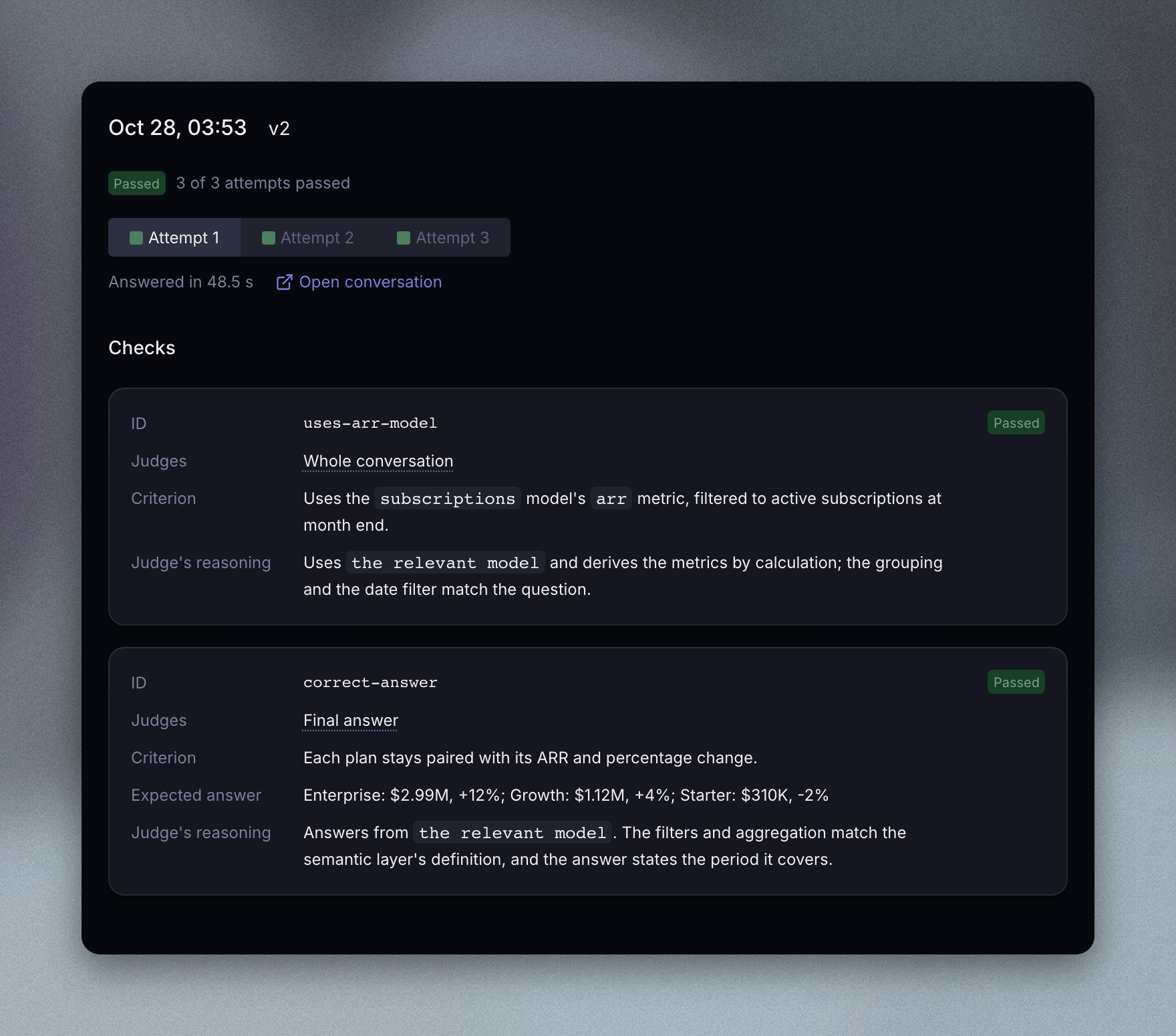
If the case has changed since the run you're looking at, the page says so.
In the terminal
supersimple evals results lists recent runs with their version, status, pass rate, and duration. Add a suite ID to filter the list. Add a run ID to see each case's outcome. Failed cases also show the judge's reasons for checks that didn't pass. Run IDs appear in the results list and the output of supersimple evals test and supersimple evals run.
bash
supersimple evals results revenue-reporting
supersimple evals results <run-id>
Add --verbose to see each attempt's latency, plus every check's criterion, expected answer, and judge reasoning. For runs of a saved version, each case links to its page in Supersimple. Open the conversation from that page.
Usage limits
Account admins can configure eval limits under Settings → AI → Configuration → Usage Limits:
- Eval cost limit per run — When a run reaches its configured limit, it is marked over budget. Answers in progress stop at the next AI call. Cases that haven't started are skipped.
- Eval cost limit per month — When this limit is reached, eval answers in progress stop. No new ones start until the next month.
Both limits are checked before every AI call, including judge calls. Test runs count towards both limits.
Eval questions don't count towards your account's other AI limits. They don't appear in Inbox or AI query history. The AI doesn't use or save memories during evals.
Running evals in CI
With --wait, supersimple evals run waits for completion and prints each case's outcome. It exits with an error unless every case passed. Use this to check changes in CI, such as a GitHub Actions job:
bash
supersimple evals run revenue-reporting --wait --timeout 30--timeout 30 stops waiting after 30 minutes. The run continues in Supersimple. Set SUPERSIMPLE_TOKEN as described in Using the CLI.