
Appearance
Configuring Supersimple AI
Use Supersimple's AI settings to add persistent business context, guidance for specific questions, and reusable workflows across your account. Open Account Settings → AI to configure them.
You can also manage instructions, answer guidance, and agent skills as code with the Supersimple CLI. Export your configuration with supersimple export, edit the YAML files, and apply changes with supersimple import. Keep the files in Git to version and review changes alongside your data models.
TIP
The Instructions and Agent skills tabs are available to account admins. They are also available to users whose group grants the Manage AI System Message permission.
The Answer guidance tab is available to all account users. Creating, editing, or deleting guides requires the Manage Answer Guidance permission.
Instructions
Instructions give the AI persistent context about your company, terminology, data, and connected sources. The AI applies the relevant instructions when it answers a question.
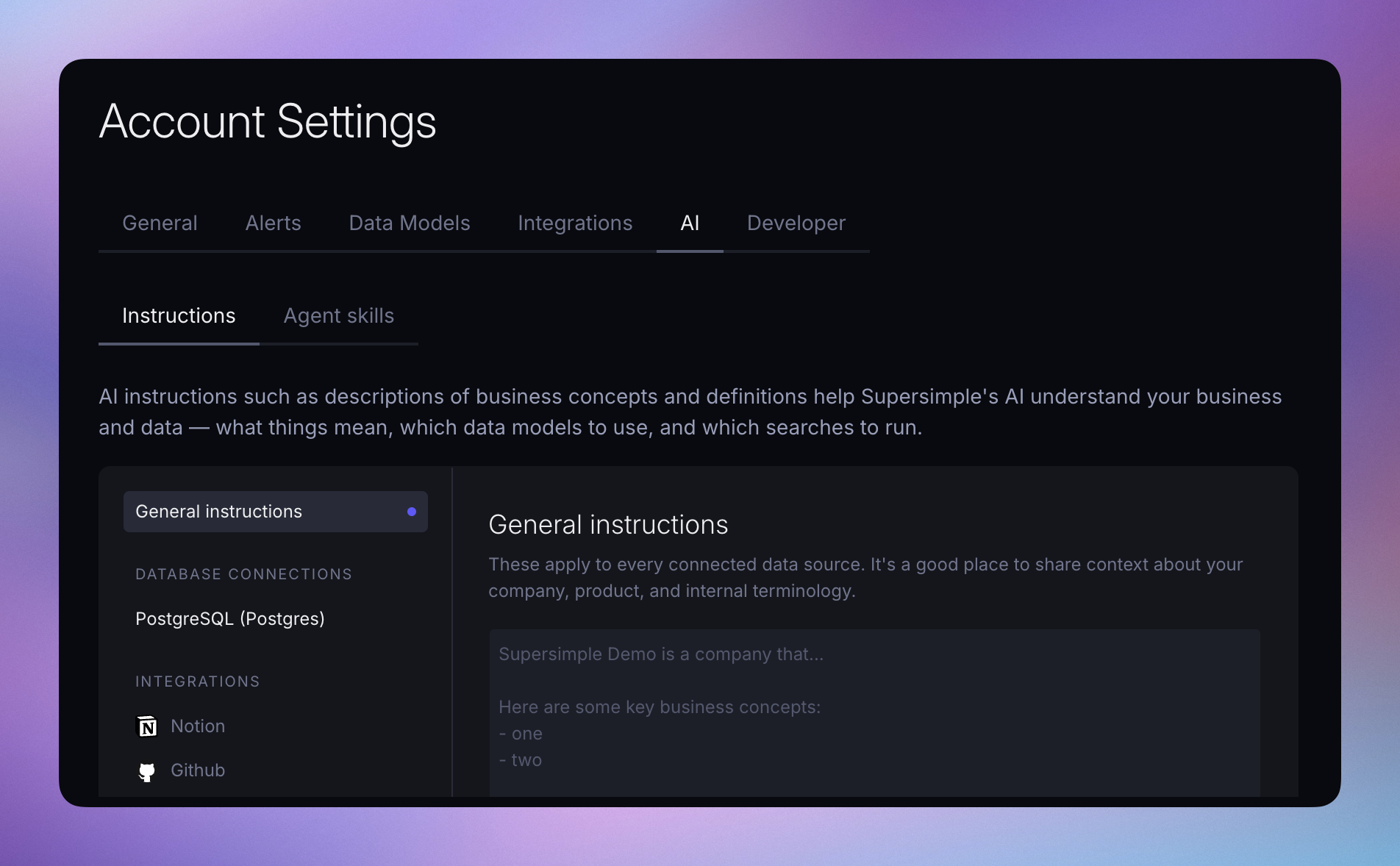
The Instructions tab separates context by scope:
- General instructions apply to every connected data source. Use them for company-wide terminology, product concepts, business definitions, and source-of-truth guidance.
- Instructions for a database connection apply when the AI works with models and data from that connection.
- Instructions for an integration apply when the AI searches or interprets content from that integration, such as Slack, Notion, or Google Drive.
To add or update instructions:
- Open Account Settings → AI → Instructions.
- Select General instructions, a database connection, or an integration.
- Write the context the AI should use for that scope.
- Select Save.
What to include
Useful instructions are durable, specific, and actionable. Include information such as:
- Internal terms and how they map to product or business concepts
- Definitions of important lifecycle stages, segments, and KPIs
- Which model or source is authoritative when several contain similar information
- Known exceptions, naming conventions, or data-quality caveats
- Where the AI should search for particular kinds of information
For example, general instructions might say:
An account is activated once it has connected a data source and created its first saved exploration. Use the Account model for customer counts. Treat the CRM as the source of truth for account ownership.
A database-specific instruction might say:
In the warehouse, use Subscription MRR for recurring revenue. Exclude internal accounts where
is_internalis true.
Keep temporary requests and one-off analysis choices in the conversation instead of account instructions.
Answer guidance
Answer guidance documents preferred ways to answer specific types of questions. The AI dynamically loads relevant guides when answering a question, using them to inform its reasoning, source selection, and answer format.
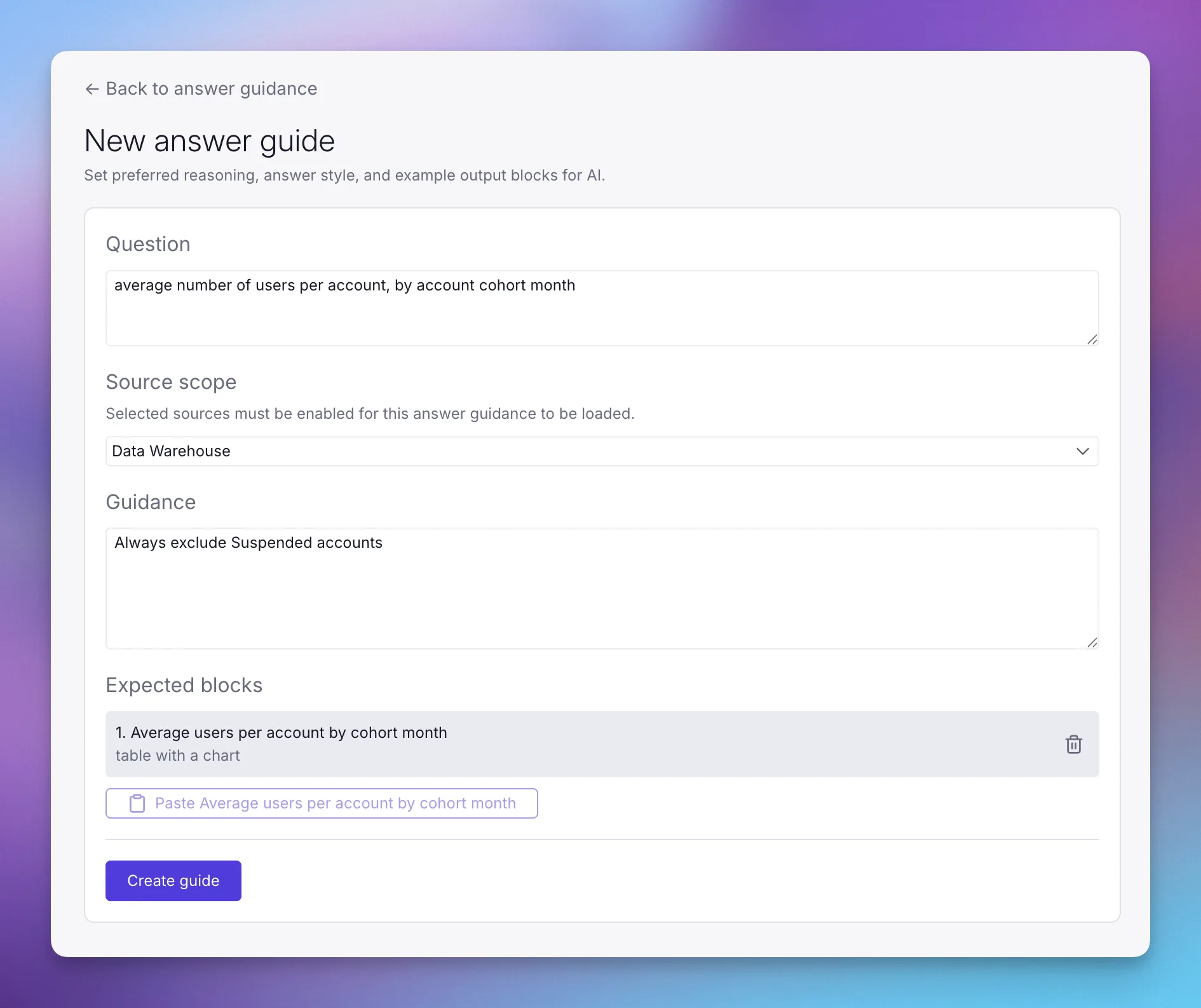
A guide can contain written guidance, example output blocks, or both. Use written guidance to explain what to analyze, where to search, and how to present the answer. For database questions, add finished tables and charts from an exploration to show the expected analysis and output.
Create a guide
- Open Account Settings → AI → Answer guidance.
- Select Create your first guide or Add guide.
- Enter a representative Question for the type of request the guide should help answer.
- Under Source scope, select at least one required database connection or integration. All selected sources must be enabled for the current question before the AI can load the guide.
- Add Guidance, Expected blocks, or both.
- Select Create guide.
For example, a guide could use the question:
What is the average number of users per account, grouped by the month the account was created?
Select the relevant warehouse in Source scope and add guidance such as:
Exclude suspended accounts. Group accounts by their creation month, calculate the average number of users per account for each cohort, and show the result as a table with a chart.
You can also attach a finished block that demonstrates this calculation and chart.
Add expected blocks
- In an exploration, prepare the table or chart you want the AI to use as an example.
- Open the block's menu and select Copy block.
- Return to the guide and use the Paste button under Expected blocks.
Blocks that use variables are not supported in answer guidance.
Agent skills
Agent skills are reusable instructions for recurring kinds of work. The AI loads a skill when its description matches the current question.
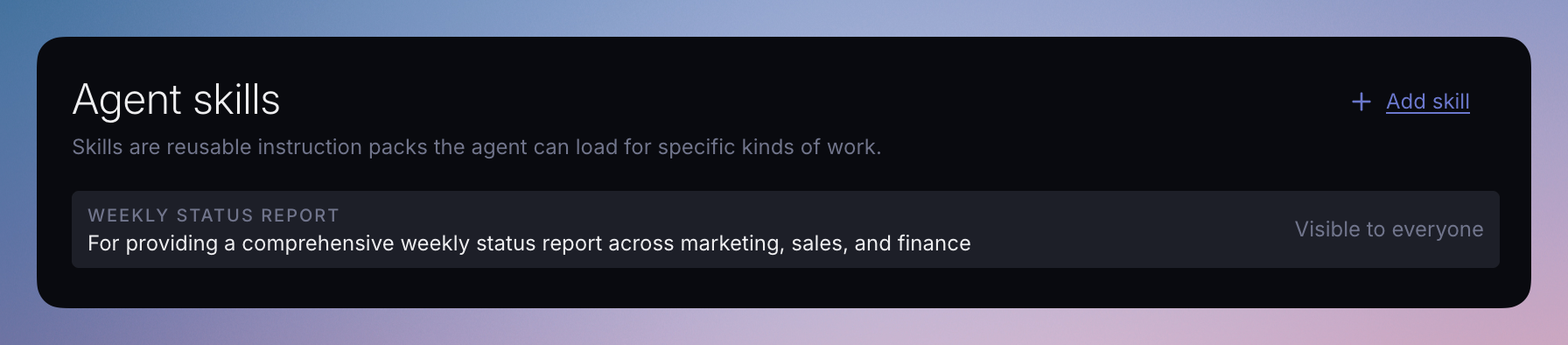
Use an agent skill when a task has a repeatable process, such as:
- Preparing a weekly customer or product status report
- Reviewing activation, expansion, or churn signals
- Combining warehouse metrics with context from Slack or another integration
- Applying a standard set of checks before presenting an answer
Use general or source-specific instructions for facts and definitions that should always apply. Use a skill for a workflow that only applies to matching requests.
Create a skill
- Open Account Settings → AI → Agent skills.
- Select Create your first skill or Add skill.
- Enter a unique Name.
- Write a Description that clearly says what the skill does and when the AI should use it. The AI uses this description to decide whether to load the skill.
- Add the workflow under Instructions.
- Optionally restrict who can use the skill under Visible to.
- Select Create skill.
A useful skill description states both what the skill does and when it applies:
Generate weekly status reports from recent work. Use this skill when someone asks for a weekly update, progress summary, or status report.
Define the workflow in Instructions:
text
Find product usage metrics in the warehouse and customer context in Slack.
For accounts in onboarding, focus on activation events.
For active accounts, summarize expansion and churn-risk signals.
When sources disagree, explain the discrepancy and cite the source used.
Write effective skill instructions
Specify the parts of the workflow that should remain consistent:
- Which data sources, models, or integrations to use
- The order of important checks or analysis steps
- How to handle missing or conflicting information
- The expected structure, level of detail, and required citations
- Conditions that change the workflow, such as lifecycle stage or user segment
Restrict skill visibility
Skills are visible to everyone in the account by default. To restrict a skill, expand Visible to and enter an access rule using user parameters. For example, this rule makes a skill available only to users with department=marketing:
json
{
  "userParameters": {
    "department": "marketing"
  }
}
The access editor uses userParameters in camel case. The parameter values come from the user's groups. See Model access control for instructions on creating groups and assigning parameters.